Hello BB Owners,
Here's another FREE THEME for your Pearl!
This is a cool Mario World theme for BB, since you probably changed your nintendo for a blackberry long time ago you can still enjoy Mario…
This theme can be downloaded here.
Showing posts sorted by date for query theme. Sort by relevance Show all posts
Showing posts sorted by date for query theme. Sort by relevance Show all posts
August 25, 2008
Attn Mario Lovers: Free Blackberry Pearl Mario Theme

August 23, 2008
Calling all "Family Guy" Lovers
Family Guy is an animated American television sitcom that airs on Fox. The show centers on a dysfunctional family that lives in the fictional town of Quahog, Rhode Island. But if you are a true Family Guy fan, you already know that and then some.
Here's a free Blackberry Pearl Family Guy Theme for your pleasure. Hopefully the funny cartoons will put a smile on your face every time you use your phone. Enjoy!
 |  |
DOWNLOAD IT HERE
April 15, 2008
Free BB Theme - ArmorRed
This cool theme is mainly red with touch of grey and white... and best of all FREE!
 |  |
 |  |
Download this FREE ArmorRed Theme ZIP file here.
April 09, 2008
Free Pink & Black Theme for your Blackberry Pearl
Enjoy this FREE Funky Pink & Black Blackberry Pearl Theme.
Click Here to download the ZIP file
March 29, 2008
Free TV Theme Ringtones for your Pearl!
It can be frustrating and difficult to find that one special ringtone you like even if it's from a popular movie soundtrack or from your favourite tv show. I found myself doing just that a few days ago... after I had a conversation with a friend regarding ringtones. We both quite enjoyed previous phones with cute but unique tv themes or even classic tunes... nowadays there's sites booming everywhere offering you the latest 50 Cent song or Britney song... so to those folks who just like the plain old MIDI files (instrumental only) versus the mp3 songs... here's a post you can appreciate.
I've compiled together some of the most popular TV themed ringtones. Ofcourse there'll be more coming soon.. but only by request! I want to know if you guys actually like these types of ringtones and what you'd like to see ofcourse. Request Request Request please! Thanks... and enjoy!
TV Theme Ringtones
These are only some of the TV Themes... to get a more detailed list visit: http://www.tv-timewarp.co.uk/midi_files/index.htm
March 03, 2008
Free BlackBerry Pearl Ringtones - Classical Music
For those who love classical music, here are some free ringtones by famous composer. You can download from 64 bitrate to 128 stereo. For best clarity I recommend 128 stereo (you must use a media card to store these files!)
| TITLE | DOWNLOAD | COMPOSERS |
| Radetzky March | 64 96 128 128 stereo | Strauss sr. |
| Liberty Bell/Monty Python Theme | 64 96 128 128 st. | Sousa |
| Can Can (CanCan) | 64 96 128 128 st. | Offenbach |
| Wedding March | 64 96 128 128 st. | Mendelssohn |
| Bacchanale | 64 96 128 128 st. | Saint-Saëns |
| 1812 Overture | 64 96 128 128 st. | Tchaikovsky |
| Wilhelm Tell/William Tell | 64 96 128 128 st. | Rossini |
| Il barbiere di Siviglia/The barber... | 64 96 128 128 st. | Rossini |
| Der Schönen Blauen Donau/The Blue... | 64 96 128 128 st. | Strauss |
| Symphony No. 40 - Allegro molto | 64 96 128 128 st. | Mozart |
| La gazza ladra/The Thieving Magpie | 64 96 128 128 st. | Rossini |
| Land of Hope and Glory | 64 96 128 128 st. | Elgar |
| Peer Gynt - Morgenstimmung | 64 96 128 128 st. | Grieg |
| Carmen - Overture | 64 96 128 128 st. | Bizet |
| Capriccio Italienne/Italien | 64 96 128 128 st. | Tchaikovsky |
| Peer Gynt - Anitra's Tanz | 64 98 128 128 st. | Grieg |
| The Planets - Venus | 64 96 128 128 st. | Holst |
| Carmen - Intro Gypsy Song | 64 96 128 128 st. | Bizet |
| Country Dance for Horns | 64 96 128 128 st. | Hook |
| Suite L'Arlesienne - No. 2 Farandole | 64 98 128 128 st. | Bizet |
| Holberg Suite - Prelude | 64 98 128 128 st. | Grieg |
| Hungarian Dance No. 5 | 64 96 128 128 st. | Brahms |
| Aufforderung zum Tanz | 64 96 128 128 st. | Von Weber |
| Brindisi | 64 96 128 128 st. | Verdi |
| Promenade | 64 96 128 128 st. | Mussorgsky |
| Moto Perpetuo | 64 96 128 128 st. | Paganini/Pollen |
| Funiculi, Funicula | 64 96 128 128 st. | Denza |
| Turkish March | 64 96 128 128 st. | Beethoven |
| Bolero | 64 96 128 128 st. | Ravel |
| Figaro Overture (Willy Wonka's...) | 64 96 128 128 st. | Mozart |
| Academic Festival Overture | 64 96 128 128 st. | Brahms |
February 28, 2008
Free iPhone Theme for your BlackBerry Pearl (bPhone)
Always fancied the iPhone but couldn't get it? Well thanks to Matt Rogers of RogersMJ.com, the bPhone (which is a imitation of the iPhone interface) gives you a slick cool theme.
bPhone comes in 3 different types of layout: Icon, Zen and Today.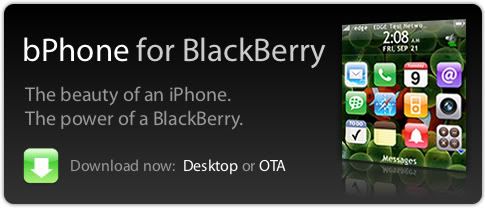
And best of all it's FREE!
Ofcourse I recommend you make some donations ($1, $2, $5, $10) to show appreciation for talented developers like him afterall it takes hours to design these themes.
These themes can be downloaded OTA (easier) or downloaded to your desktop.
To download OTA select the right phone, and you'll be asked for an email address that is set up with your BlackBerry.
February 20, 2008
Blackberry Pearl Keyboard Basic Shortcuts
The following shortcuts can be used in many applications:
- To move the cursor, roll the trackball.
- To exit a screen or to move to a previous page in a browser, press the Escape key.
- To move upwards in a screen, press 3.
- To move downwards in a screen, press 9.
- To move to the top of a screen, press 1.
- To move to the bottom of a screen, press 7.
- To move to the next item, press 6.
- To move to the previous item, press 4.
- To move to a list item or menu item, type the first letter of the item.
- To select or clear a check box, click the trackball.
- To select adjacent items, hold the Shift key and roll the trackball.
- To delete a selected item, press the Delete key.
- To switch applications, hold the Alt key and press the Escape key. Continue holding the Alt key and select an application. Release the Alt key.
- To return to the Home screen, press the End key.
- To lock the keyboard, from the Home screen, hold the asterisk ( * ) key.
- To unlock the keyboard, hold the Send key and press the asterisk ( * ) key. Type your password.
- To switch between the Default and Vibrate notification profiles, from the Home screen, hold the pound ( # ) key.
- To turn on a theme or notification profile, select a theme or notification profile, then press the Space key.
Phone Shortcuts
The following shortcuts can be used in the phone application or during a phone call:
- To answer a phone call, press the Send key.
- To place an active phone call on hold and answer a second incoming phone call, press the Send key.
- To view the contact list, hold the Send key.
- To insert a plus sign ( + ) when typing a phone number, hold 0.
- To add an extension to a phone number, press the X key, then type the extension number.
- To assign a speed dial number to a key, from the Home screen or in the Phone application, hold the key you want to assign. Type the phone number.
- To check your voice mail, hold 1.
- To view the last phone number that you dialed, scroll to the top of the Phone screen, then press the Enter key. Press the Send key to dial the number.
Camera Shortcuts
The following shortcuts can be used in the Camera application:
- To take a picture, press the Right Convenience key.
- To zoom the camera in, press the Volume Up key.
- To zoom the camera out, press the Volume Down key.
Message Shortcuts
The following shortcuts can be used in the Messages application:
- To compose a message from the message list, press the comma ( , ) key.
- To reply to a message, press the exclamation point ( ! ) key.
- To reply to all, press the question mark ( ? ) key.
- To forward a message, press the period ( . ) key.
- To view received messages, hold the Alt key and press 3.
- To view call logs, hold the Alt key and press the period ( . ) key.
- To view voice mail messages, hold the Alt key and press 7.
- To view SMS text messages, hold the Alt key and press the question mark ( ? ) key.
- To view your message list again, press the Escape key.
- To move up a message in the list, press 2.
- To move down a message in the list, press 8.
Typing Shortcuts
The following shortcuts can be used when typing text in an application:
- To type the alternate character on a key, hold the Alt key and press the character key.
- To type an accented or special character, hold the letter key and roll the trackball left or right. Click a selected character.
- To type a symbol, press the Symbol key. To view more symbols, press the Symbol key again. Type the letter that appears below the symbol to enter the corresponding symbol.
- To insert a period, press the Space key twice. The next letter is capitalized.
- To capitalize a letter, hold the letter key until the capitalized letter appears.
- To turn on NUM lock, hold the Shift key and press the Alt key.
- To turn off NUM lock, press the Alt key.
- To insert an at sign ( @ ) or a period ( . ) in an email address field, press the Space key.
- To type a number in a number field, press a number key. You do not need to press the Alt key.
- To type a number in a password field, hold the Alt key and press the number key.
- To type a letter in a number field, hold the Alt key and use the multi-tap input method to enter the letter.
- To switch typing input languages, hold the Alt key and press the Enter key. Select a language, then release the Alt key. Note: To allow this functionality, on the Language screen, verify that the Use Input Method Shortcut field is set to Yes.
- To select a line of text, press the Shift key and roll the trackball.
- To select text character by character, hold the Shift key and roll the trackball left or right.
- To cancel a text selection, press the Escape key.
- To cut selected text, hold the Shift key and press the Delete key.
- To copy selected text, press the Alt key and click the trackball.
- To paste your cut or copied text, press the Shift key and click the trackball.
Search Shortcuts
The following shortcuts can be used when searching in an application:
- To search for a contact in a list of contacts, type the contact name or initials separated by a space.
- To view the criteria of your last search, in your list of searches, press the Menu key. Click Last.
Attachment Shortcuts
The following shortcuts can be used when viewing attachments:
- To search for text in an attachment, press Q.
- To switch between the table of contents and the full content of an attachment, press O.
- To change the size of a column in a spreadsheet, press Z.
- To move to a specific cell in a spreadsheet, press A.
- To view the content of a cell in a spreadsheet, press the Space key.
- To view a slide show presentation, press A.
- To stop a slide show presentation, hold the Escape key.
- To switch presentation views, press Z.
Browser Shortcuts
The following shortcuts can be used in the browser applications:
- To insert a period ( . ) in the Go To dialog box, press the Space key.
- To insert a forward slash ( / ) in the Go To dialog box, hold the Shift key and press the Space key.
- To open the bookmark list from a web page, press 5.
- To add a bookmark from a web page, press the question mark ( ? ) key.
- To view a thumbnail version of a web page, press X. To return to the normal view, press any key.
- To stop loading a web page, press the Escape key.
- To move to a specific web page, press the period ( . ) key.
- To hide the banner on a web page, press the exclamation point ( ! ) key. To view the banner on a web page, press the exclamation point ( ! ) key again.
- To close a browser, hold the Escape key.
Media Shortcuts
The following shortcuts can be used in the Media application:
- To pause a video, press the Mute key. To resume playing the video, press the Mute key again.
- To zoom in to a picture, press 3.
- To zoom out from a picture, press 9.
- To return to the original picture size, press 5.
- To rotate a picture, press the comma ( , ) key.
- To pause a slide show, press the Space key. To resume the slide show, press the Space key again.
- To pause a song, press the Mute key. To resume playing the song, press the Mute key again.
Maps Shortcuts
The following shortcuts can be used in the Maps application:
- To zoom in to a map, press L.
- To zoom out from a map, press O.
- To view the status information at the top of a map, press Q. To hide the status information at the top of a map, press Q again.
Calendar Shortcuts
The following shortcuts can be used in the Calendar Day view:
Note: To allow shortcuts in Day view, in the Calendar options, set the Enable Quick Entry field to No.
- To schedule an appointment, press the period ( . ) key.
- To move to the next day, press 6.
- To move to the previous day, press 4.
- To move ahead one hour, press 2.
- To move back one hour, press 8.
Subscribe to:
Posts (Atom)